How to find connected devices and IP addresses on a local network
Whether you plugged in a headless Raspberry Pi, installed a network printer, or want to check for unknown devices on your Wi-Fi, scanning your local subnet reveals active IP addresses without needing to log into your router.
Download Open Port Scanner v2.0
Auto-detects your Wi-Fi / Ethernet subnet • Windows, macOS & Linux
Why ARP and ping alone often miss devices
Standard tools like arp -a only display devices your computer has recently communicated with, and Windows/macOS firewalls frequently block ICMP ping requests by default. Checking common TCP ports (like 22, 80, 443, 445, and 8080) across the entire /24 subnet reliably discovers active hardware.
Discover network devices in seconds
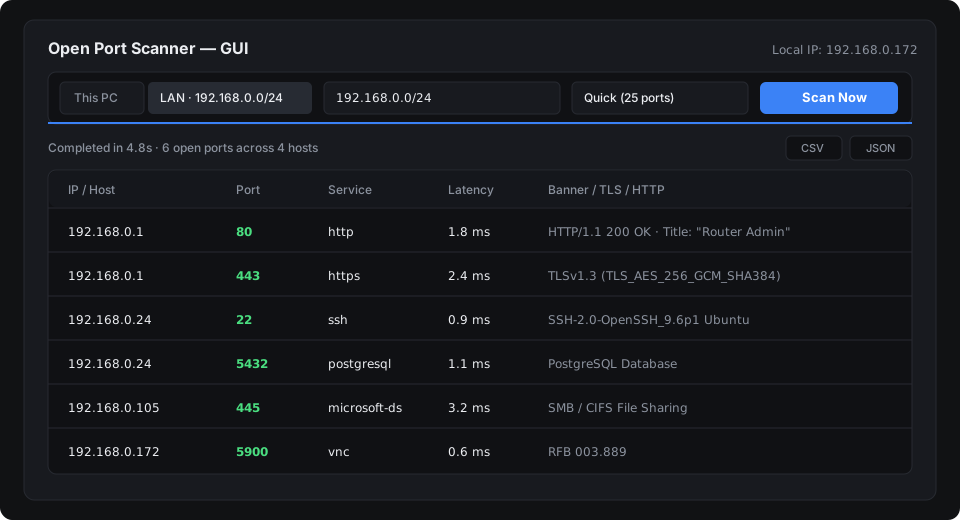
- Download and open Open Port Scanner.
- Click the LAN subnet button (the tool automatically ignores loopback and VPN tunnels to locate your physical adapter's subnet).
- Keep the Quick (25 ports) preset selected and click Scan.
- Review the results table:
- SSH banners (Port 22): Usually indicate Linux servers, Raspberry Pis, or NAS devices.
- HTTP titles (Port 80 / 443 / 8080): Immediately name routers, printers (e.g., HP LaserJet), Proxmox nodes, and Home Assistant panels.
- SMB (Port 445) or RDP (Port 3389): Identify Windows workstations and shared file servers.
Command-line discovery
# Discover all active hosts on your current network:
port-scanner --lan --profile quick

# Export the inventory to CSV for record-keeping:
port-scanner --lan --profile quick -o office-devices.csv